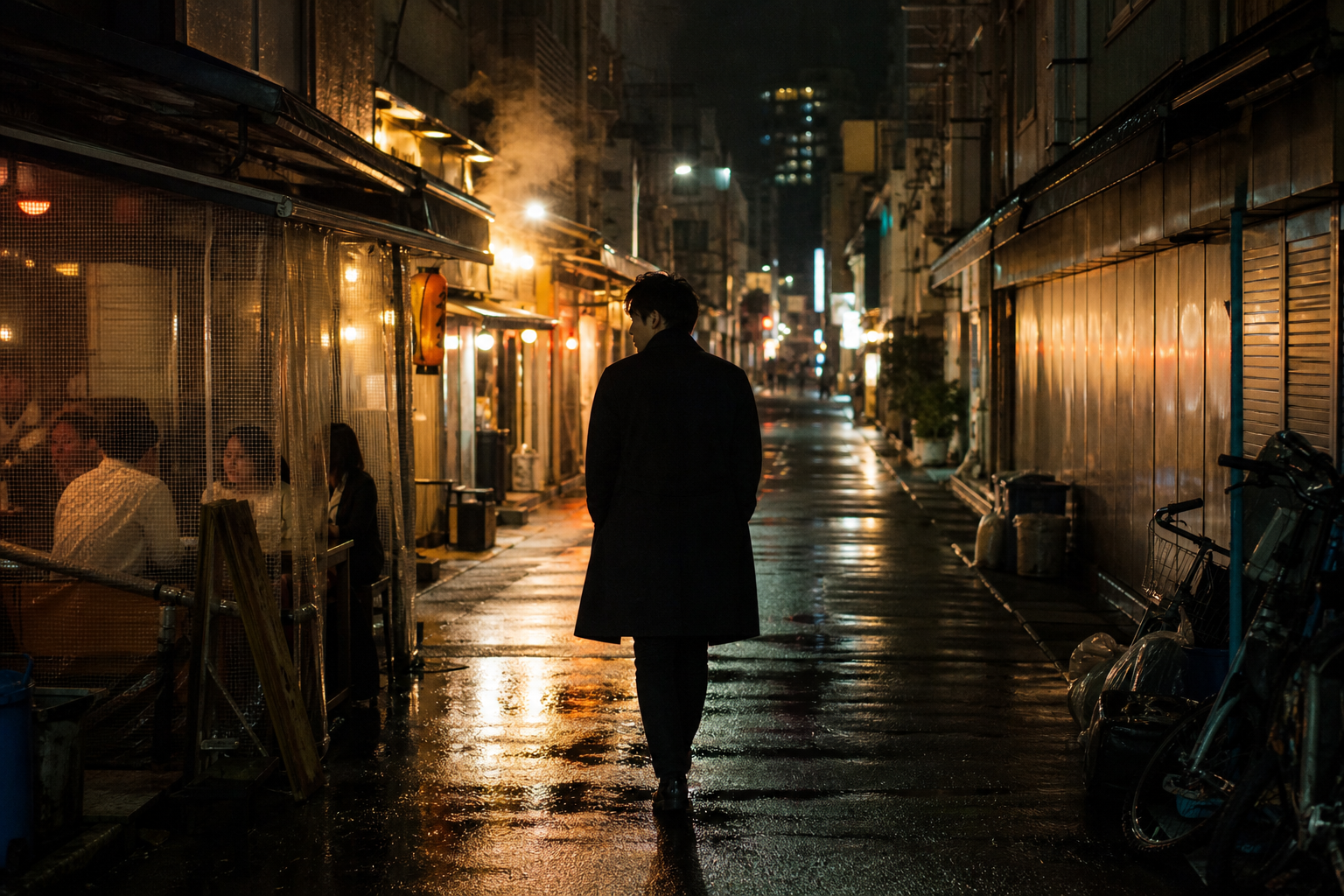
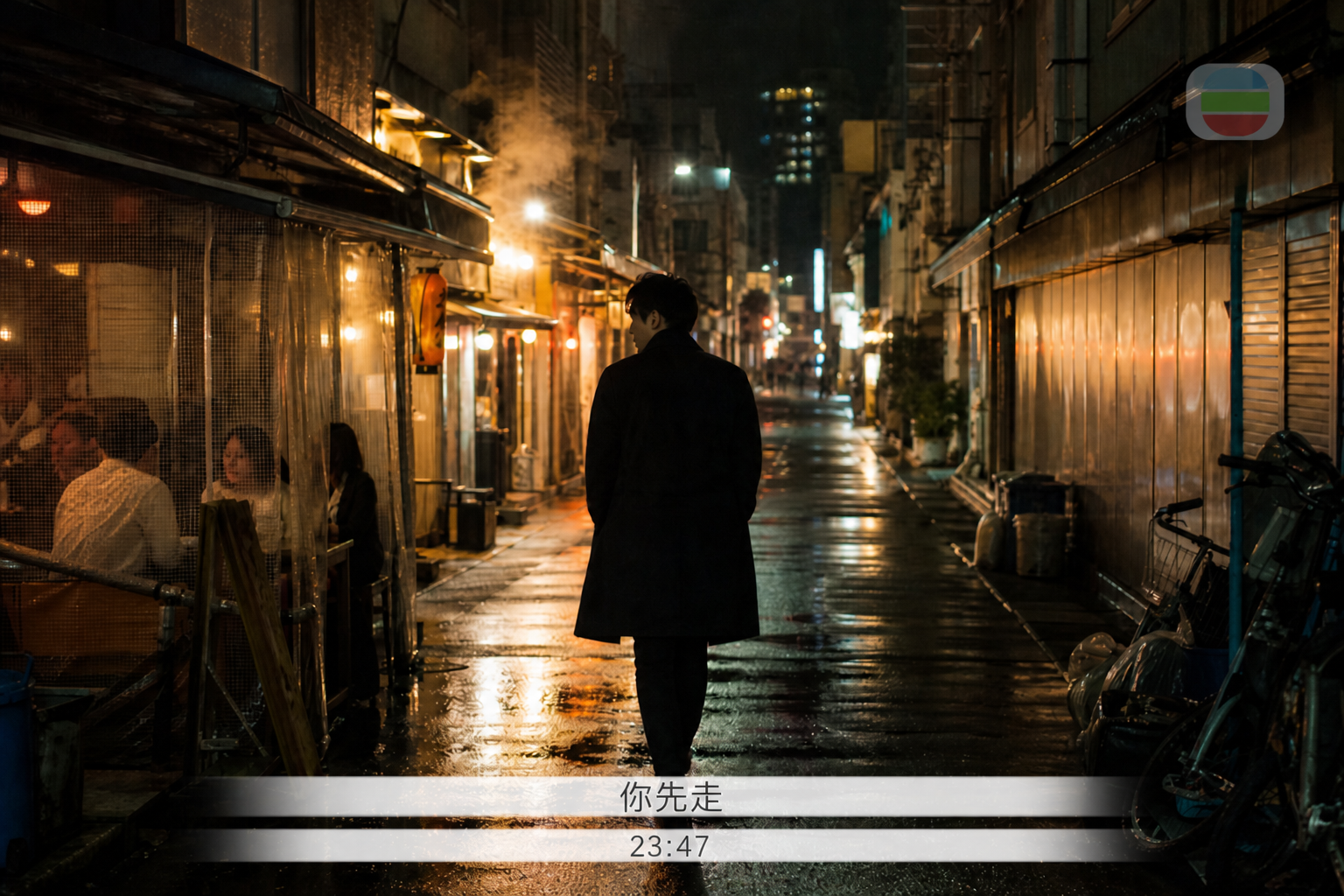
Drag the handle to compare before and after.
Burned-in captions and a timecode go. The alley and walker stay.
Setup
Cloud · freeBox a region, then cover captions or bugs.
Clear burned-in captions so you can reuse the shot or retitle it. Box the region on this page.
Click this button, then watch the right side
Sign in to finish here. No credits.
After you sign in, generated assets land in My Projects. Open that list anytime to find them.
Preview

The result appears here
Samples sit under the bench. They are not your upload. Drag the handle on before-and-after pairs.
Drag the handle to compare before and after.
Burned-in captions and a timecode go. The alley and walker stay.
People open Box Mask to finish one clip.
01
The clip plays, but it is soft or has burned-in captions.
02
Clear one caption layer or sharpen. Leave the timeline.
03
Box the caption or bug, then erase.
STEP 1
Drop the clip, then box the caption or bug.
STEP 2
Drag to adjust the box. Cloud erase costs nothing.
STEP 3
Review and download here.
You can read the page and examples first. Generate asks you to sign in. An empty generate stays here.
Trim, crop, split, video upscale, and caption erase run in the cloud and cost nothing. Reshoot is per second. Remake and breakdown are metered. The button shows this job's rate.
Signed-in results go to My Projects. Download here, or open My Projects later for the same files.
Failed jobs are usually not charged. The button is an estimate; the ledger shows the successful charge.